Make it yours
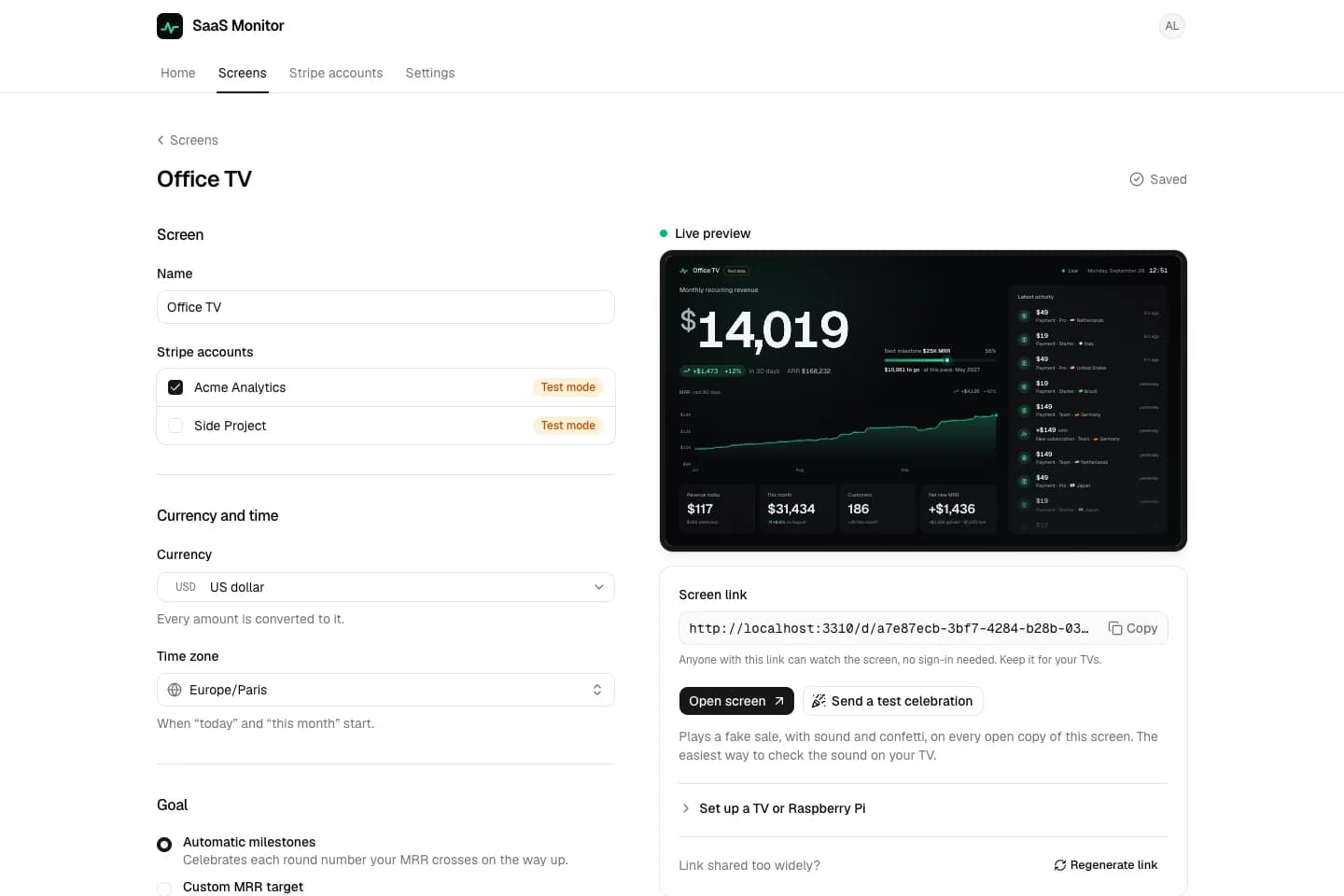
Every screen has its own settings, with a live preview right next to them. Every change is saved as you go.
On this page
Your numbers
MRR or ARR
Show MRR, or ARR if that’s how you count: the headline, chart, goal and milestones follow. Payments and revenue stay what customers paid.
Milestones or your goal
Automatic milestones celebrate each round number on the way up, from $100 to $1K, $10K and beyond. Or set your own target.
Chart range
The last 30 days, 90 days, 12 months, or all time.
Currency and time zone
Every amount is converted to the screen’s currency. Its time zone decides when “today” and “this month” start.
Theme and color
Dark, or light for bright rooms. Pick one of five accent colors, or paste your brand color as hex: the screen adjusts it if needed, so that it stays readable.
Seven languages
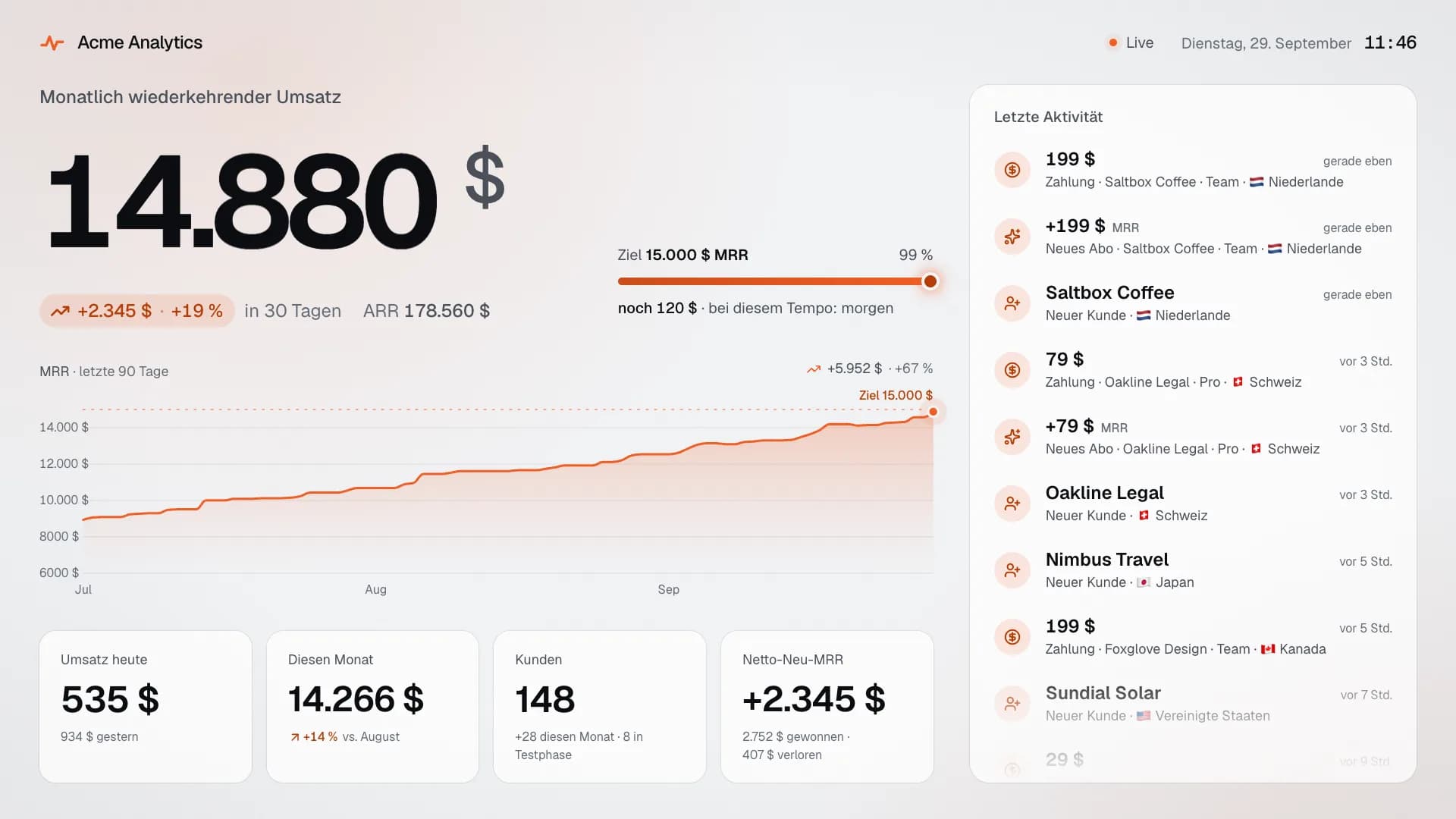
A screen speaks English, French, German, Spanish, Italian, Portuguese or Dutch, and writes numbers and dates the local way. The dashboard itself stays in English.
- English€12,480
- Français12 480 €
- Deutsch12.480 €
- Español12.480 €
- Italiano12.480 €
- Português (Brasil)€ 12.480
- Nederlands€ 12.480
Sounds and voices
Three sound packs, synthesized right in the browser, with five sounds each, from a payment to a milestone. Hear them all
Cash register
The classic ka-ching: a drawer and a till bell.
Chime
Soft bells for a calm office.
Arcade
8-bit coins and power-ups.
After the sound, a voice can say what happened: two voices per language, in English, French, German, Spanish and Portuguese. Sound and voice each have their own switch and volume.
Your own phrases: with a Gradium API key on the server, the voice says what you write, with the customer’s name, the amount or the plan.
What each event does
For each kind of event, five switches: listed in the feed, shown as a card, its sound, said out loud, and a notification on the phones that follow the screen.
| Event | Feed | Card | Sound | Voice | Phone |
|---|---|---|---|---|---|
| Payment | On | On | On | On | On |
| Payment for a Connect account | On | On | On | On | Off |
| New subscriber | On | On | On | On | On |
| Upgrade | On | On | On | On | On |
| Reactivation | On | On | On | On | On |
| Downgrade | On | On | On | Off | Off |
| Cancellation | On | On | On | Off | Off |
| Failed payment | On | On | On | Off | Off |
| New customer | On | On | On | On | On |
| Milestone | On | On | On | On | On |
Several Stripe accounts
A screen can show several Stripe accounts, converted to its currency, in one of two ways.
Added up
One total for every account. The feed names the account of each item.
One at a time
Each account takes its turn with its own numbers, and their total too if you like. When something happens, the screen shows its account right away.
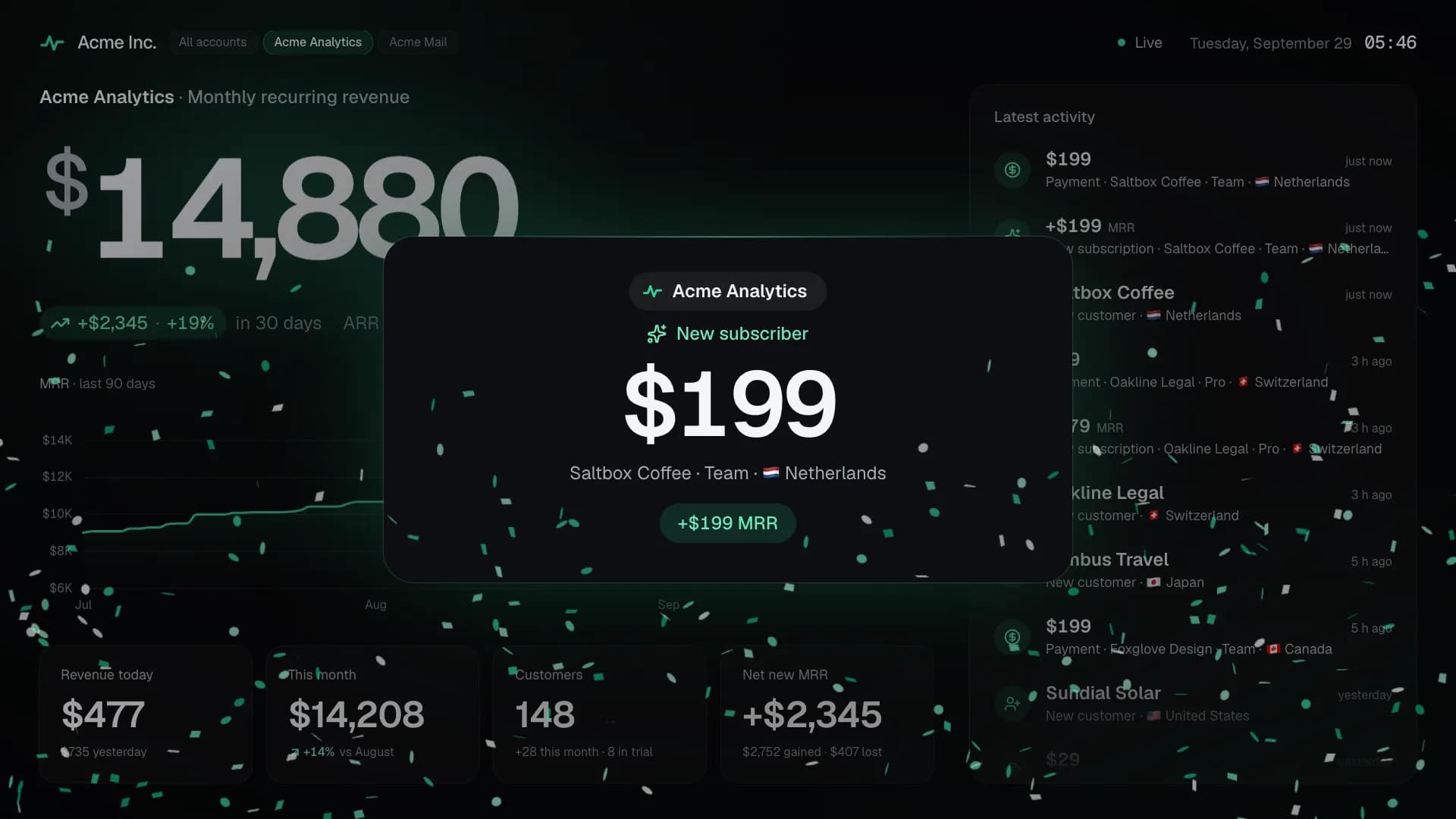
Or make one screen per product, and a quiet one without sound for the meeting room: as many as you like, each with its own link and settings.
Customer names
Hidden by default: anyone who sees the screen would see who pays you. Show them if you like. Customers that Stripe only knows by their email can then be named by their email, masked (j•••@gmail.com) or in full, or not at all. Voices never read emails.
See your own numbers live today
Free during the public beta. Connect Stripe with a read-only key, and your screen is ready in about two minutes.
- Free during the beta
- Free forever self-hosted
- Read-only Stripe key
Questions? Write to support@saas-monitor.com.